Nohaya
⚡ AI Tools 2026-07-08 · 5 min read · Updated 2026-07-11

Stack Switching: When to Use Multiple Creative Tools vs One Big Suite

NT

Nohaya Team · Creator Tools & AI Software Reviewer

The Nohaya team researches, tests, and writes about AI tools, creator software, and productivity apps so you don't have to sort through the noise yourself.

Key Takeaways

  • All-in-one suites work best when you regularly bounce between related tasks and value one-stop support, but charge an 'integration tax' of feature bloat and slower innovation.
  • Specialized tools excel at specific tasks and ship innovations faster, but require moving files between apps and learning different interfaces.
  • Most experienced creators use a hybrid approach: an anchor suite for core work plus specialist tools for specific pain points.
  • The right creative stack depends on honest assessment of your actual workflow, not influencer recommendations or trends.
  • When switching tools, migrate one workflow at a time and test for at least ten real projects before judging.
Stack Switching: When to Use Multiple Creative Tools vs One Big Suite

Stack Switching: When to Use Multiple Creative Tools vs One Big Suite

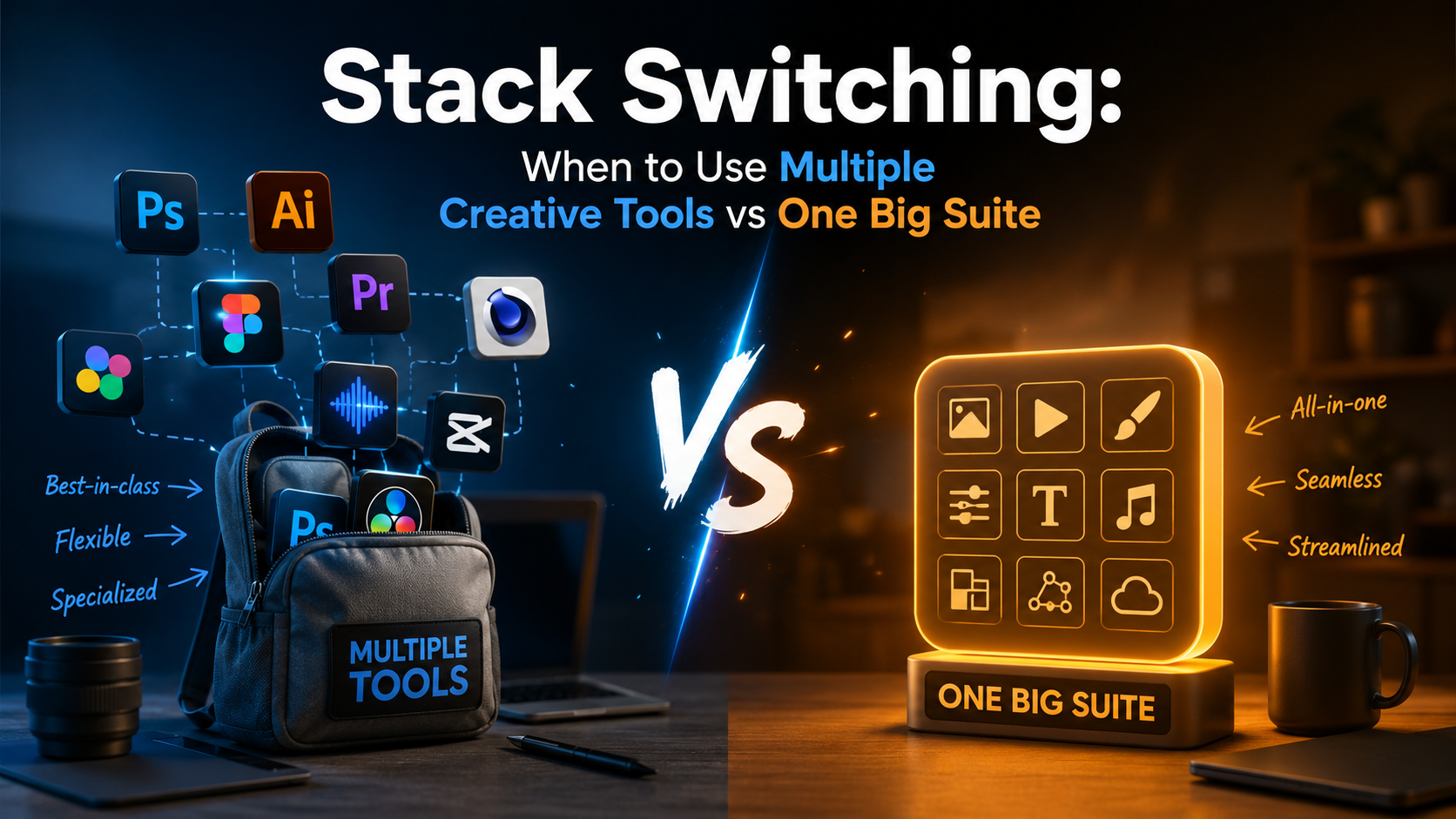
Every creator faces the same dilemma: commit to an all-in-one platform like Adobe Creative Cloud or Canva, or build a custom stack of specialized tools? The choice affects your budget, learning curve, and creative output more than most realize.

This isn't about listing "best apps." Instead, let's map out when each approach actually makes sense for your creative work.

The Integration Tax: What You Pay for All-in-One

Integrated suites promise seamless workflows. Adobe's ecosystem lets you move from Photoshop to Illustrator to After Effects without file conversion headaches. Notion connects your notes, databases, and wikis in one interface.

But integration comes with hidden costs:

  • Feature bloat: You're paying for tools you'll never touch
  • Vendor lock-in: Your content lives in proprietary formats
  • Pace of innovation: Big suites update slowly compared to nimble single-purpose apps
  • Learning overhead: Mastering a full suite takes months or years

The integration premium makes sense when your workflow genuinely requires tight tool coupling. Video editors moving between cutting, color grading, and effects benefit from staying inside DaVinci Resolve. Brand designers working across print, web, and motion need Adobe's consistent color management.

But if you're mostly doing one thing—say, editing podcasts or designing social posts—you're subsidizing features you'll never use.

The Specialist Advantage: Best-of-Breed Tools

Specialized tools obsess over one job. Descript revolutionized podcast editing by treating audio like text. Figma reimagined interface design around real-time collaboration. These apps couldn't exist as features in a larger suite because they fundamentally rethink their category.

When specialist tools win:

  • Your workflow is linear: You complete one task before moving to the next
  • You need cutting-edge features: Specialized apps ship innovations years before suites copy them
  • Collaboration matters more than integration: Cloud-native tools often beat suite apps at teamwork
  • You're learning: Focused tools have gentler learning curves than do-everything platforms

The tradeoff? You'll spend time moving files between apps and learning different interfaces. For some creators, this context switching kills momentum. For others, it's barely noticeable.

A Framework for Your Decision

Stop asking "which is better" and start asking "what does my workflow actually need?"

Choose an integrated suite when:

You regularly bounce between related tasks. A motion designer moving from illustration to animation to video editing benefits from Adobe's ecosystem. A content marketer who brainstorms in notes, drafts in documents, and tracks in databases might prefer Notion's unified workspace.

You work solo or with a small team using the same tools. Suites shine when everyone speaks the same software language.

You value one-stop support and predictable billing. Dealing with one vendor has real administrative value.

Choose specialized tools when:

You do one thing exceptionally well and often. Podcast editors should probably use Descript or Reaper, not Adobe Audition. Newsletter writers might pick Substack or Ghost over WordPress.

You need the absolute best at specific tasks. No suite's screen recorder matches Loom's sharing features. No all-in-one design tool handles prototyping like Figma.

You experiment with new workflows frequently. Specialists let you swap components without abandoning your entire stack.

The Hybrid Approach Most Creators Actually Use

Here's what experienced creators rarely admit: they use both.

The pattern that works: commit to a suite for your core competency, then supplement with specialists for specific pain points.

A video creator might use DaVinci Resolve as their foundation but pull in Runway for AI effects, Descript for transcript-based editing, and Frame.io for client reviews. A writer could build on Google Docs but add Grammarly for editing, Hemingway for readability, and Airtable for content planning.

The key is identifying your anchor—the tool where you spend 60%+ of your creative time—then being ruthless about which additional apps earn a spot in your workflow.

Making the Switch Without Losing Momentum

Whether you're consolidating into a suite or breaking free to specialists, transition deliberately:

Migrate one workflow at a time, not everything at once. Move your podcast editing to a new tool while keeping video in your current app.

Give new tools at least ten real projects before judging. The first three attempts will feel clunky regardless of whether the tool is actually better.

Track actual time saved or lost, not perceived efficiency. You might feel slower in a new tool while actually producing better work faster.

Finding What Fits Your Work

The right creative stack isn't about using what influencers recommend or what's trending. It's about honest assessment of how you actually work, what slows you down, and what creative possibilities you're missing.

Try tools that address specific frustrations rather than chasing comprehensive solutions. Your perfect setup might be one suite, twelve specialists, or anything in between.

For more detailed breakdowns of individual creator tools and how they compare, check out Nohaya's full catalog of AI and creator resources to find what matches your specific workflow needs.

Best for

  • Creators struggling to decide between committing to Adobe Creative Cloud, Canva, or Notion versus building a custom tool stack
  • Experienced creators considering whether to consolidate their tools or break free to specialists
  • Video editors, podcast creators, designers, and writers actively managing multiple creative tools

Not a great fit for

  • Complete beginners who haven't used any creative tools yet and need guidance on starting with one platform
  • Users looking for comparisons of specific feature sets between named tools

DaVinci Resolve

Professional video editing software with integrated cutting, color grading, and effects capabilities

Pros

  • ✓ Seamless workflow between cutting, color grading, and effects in one integrated suite
  • ✓ Professional-grade tools for video creators
  • ✓ Free version available with robust features

Cons

  • ✗ Steep learning curve for mastering the full suite
  • ✗ Heavy software with significant system requirements
  • ✗ Slower to adopt cutting-edge features compared to specialized tools
Free version available; DaVinci Resolve Studio is a paid version Visit site →

Figma

Cloud-native interface design and prototyping tool with real-time collaboration capabilities

Pros

  • ✓ Real-time collaboration beats suite design tools
  • ✓ Cloud-native architecture enables seamless teamwork
  • ✓ Fundamental innovation in prototyping that specialized tools excel at

Cons

  • ✗ Requires integration with other tools for complete workflows
  • ✗ Vendor lock-in to cloud-based files
  • ✗ Separate from video, animation, and other creative domains
Free tier available; paid plans starting around $12/month Visit site →

Descript

Podcast and audio editing tool that treats audio like text, revolutionizing transcript-based editing

Pros

  • ✓ Innovative approach treating audio like text editing
  • ✓ Transcript-based editing workflow is cutting-edge
  • ✓ Specialized tool with gentler learning curve than suites

Cons

  • ✗ Requires integration with other tools for video or advanced effects
  • ✗ Context switching between Descript and other apps needed for comprehensive workflows
  • ✗ May feel limiting if transitioning from full-featured suites like Adobe Audition
Free tier available; paid plans starting around $12/month Visit site →

Adobe Creative Cloud

All-in-one suite integrating Photoshop, Illustrator, After Effects, and other creative tools

Pros

  • ✓ Seamless integration between Photoshop, Illustrator, and After Effects
  • ✓ Consistent color management across print, web, and motion
  • ✓ One-stop support and predictable billing
  • ✓ Ideal for brand designers and motion creators bouncing between related tasks

Cons

  • ✗ Feature bloat—paying for tools you'll never use
  • ✗ Vendor lock-in with proprietary file formats
  • ✗ Slower pace of innovation compared to nimble specialists
  • ✗ High learning curve to master the full suite
Subscription-based, approximately $55-85/month depending on plan Visit site →
#creator tools#productivity#workflow#software#ai tools

Keep exploring

See what AI Tools has to offer on Nohaya

⚡ Explore AI Tools →
What is the 'integration tax' and when is it actually worth paying? +

The integration tax refers to hidden costs of all-in-one suites: feature bloat, vendor lock-in, slower innovation, and learning overhead. It's worth paying when your workflow genuinely requires tight tool coupling across multiple related tasks—like video editors moving between cutting, color grading, and effects in DaVinci Resolve, or brand designers working across print, web, and motion with Adobe's color management.

Why can't specialized tools like Descript or Figma just become features in larger suites? +

According to the article, specialist tools like Descript and Figma couldn't exist as features in larger suites because they fundamentally rethink their entire category from the ground up. They're designed around innovations (like treating audio like text, or real-time collaboration) that are incompatible with how larger suites work.

What's the 'hybrid approach' that the article says experienced creators actually use? +

Most experienced creators use both suites and specialist tools together. The pattern is to commit to a suite for your core competency (where you spend 60%+ of your time), then supplement with specialized tools for specific pain points—like a video creator using DaVinci Resolve as their foundation but adding Runway for AI effects, Descript for transcripts, and Frame.io for reviews.

How long should I test a new tool before deciding if it's actually better? +

The article recommends giving new tools at least ten real projects before judging them, because the first three attempts will feel clunky regardless of whether the tool is actually better. You should also track actual time saved or lost rather than relying on perceived efficiency.